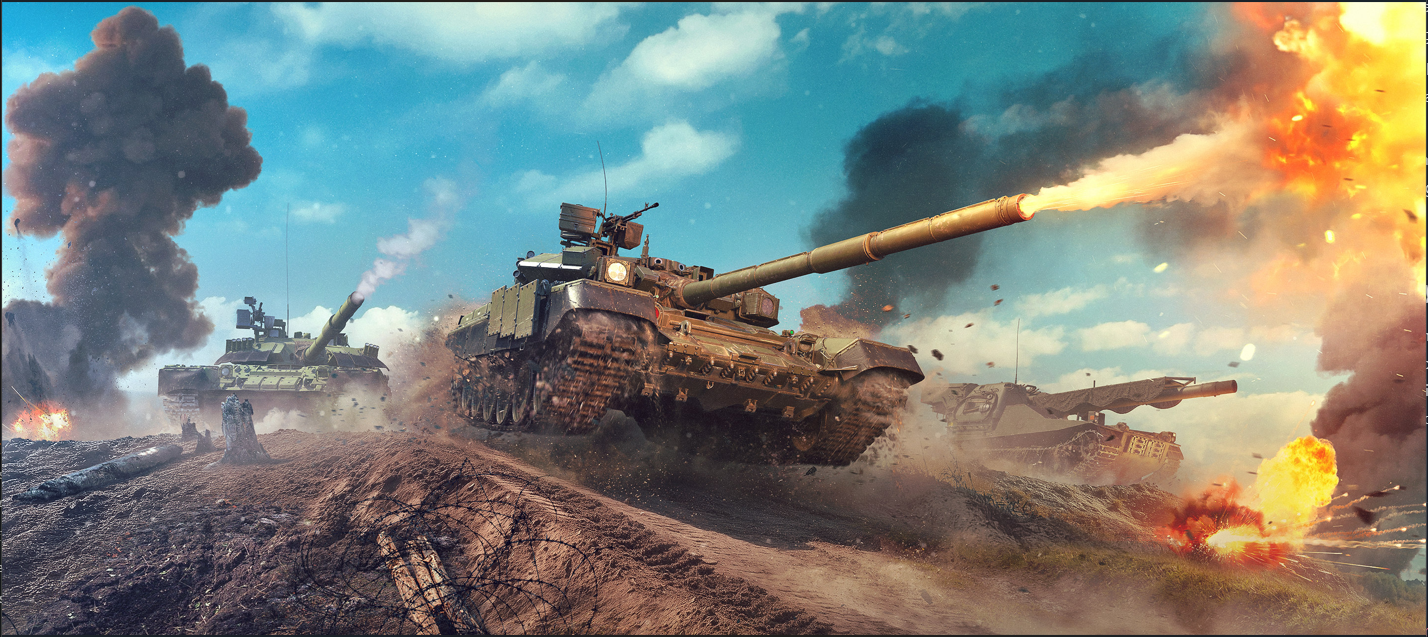
Looking for War Thunder on PC? The game is free to play on Windows and Mac through its official website or Steam. Before you start, choose one storefront, check its current system requirements, and make sure you have enough storage. The official requirements pages do not list identical macOS versions or storage figures, so double-check the version tied to your chosen launcher.
The quick answer
- Windows: Get War Thunder from its official website or through Steam.
- Mac: Steam lists a Mac version, and Gaijin provides official Mac setup instructions. Check the requirements for your chosen launcher first.
- Price: War Thunder is free to play, with optional in-game purchases and paid content listed by the storefront. Check the U.S. store page for current prices and terms.
- Connection: This is an online game, so you need an internet connection to play.
Ready to play War Thunder?
Check the current offer and confirm that it supports your Windows or Mac setup in the United States.
CHECK THE OFFERCheck your PC or Mac before you get started
Gaijin’s official system requirements are a useful starting point. The figures below are from that FAQ as checked on October 11, 2026; requirements can change with updates.
| Platform | Official FAQ: minimum | Official FAQ: recommended |
|---|---|---|
| Windows | Windows 10 64-bit; dual-core 2.2 GHz CPU; 4 GB RAM; DirectX 11 graphics such as Radeon 77XX or GTX 660; 23.1 GB minimum client | Windows 10/11 64-bit; Intel Core i5 or Ryzen 5 3600+; 16 GB RAM; GTX 1060+ or RX 570+; 75.9 GB full client |
| Mac | macOS Big Sur 11.0+; Core i5 at 2.2 GHz; 6 GB RAM; Metal-capable graphics; 22.1 GB minimum client | macOS Big Sur 11.0+; Core i7; 8 GB RAM; Radeon Vega II or newer with Metal; 62.2 GB full client |
Important: Steam’s store listing currently shows different disk-space figures (70 GB minimum and 95 GB recommended) and a different Mac minimum OS version (Catalina 10.15). Because the official pages disagree, check the requirements displayed by your selected store or launcher just before you get started. Leave extra free space for updates, and don’t assume that meeting the smallest published figure guarantees a smooth experience.
What you can play after setup
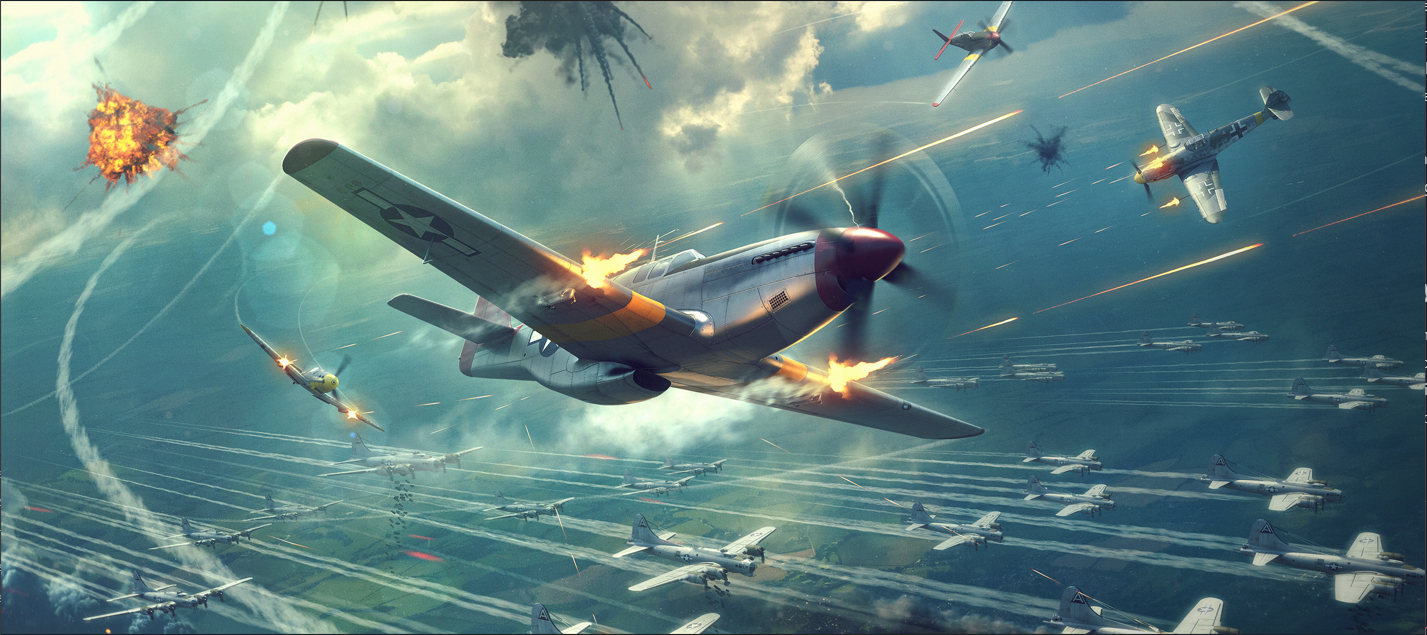
Air battles ask for a different rhythm: learn the camera controls, practice tracking a target, and leave enough performance headroom for busy scenes. A stable frame rate and comfortable controls will help more in your first matches than chasing the highest visual preset.
Ground battles combine positioning, cover, and awareness of the vehicles around you. Once the game is installed, start with graphics settings that keep the action easy to read, then adjust them gradually for your PC or Mac rather than copying someone else’s settings.
Choose your launcher
Get War Thunder through Steam
- Open the War Thunder page in the U.S. Steam store and confirm the Windows or Mac version is available for your device.
- Choose Steam’s option to add the game to your library and follow the prompts.
- Let the game files and first-launch updates finish before starting a match.
- Sign in or create the account requested by the game. Keep track of whether you started through Steam or the standalone launcher so you can return to the same account and storefront.
Steam is convenient if you already manage your PC games there. Its store page also shows optional paid content; review the item, platform, and current U.S. price before checking out.
Get War Thunder from Gaijin’s official site
War Thunder offers different vehicle types and battle styles, so you do not need to learn everything at once. Pick one mode for your first session, notice what makes each defeat difficult, and make one small change before the next match.
For the standalone route, start at the official War Thunder website and choose the option to get the client for your operating system. On Mac, follow Gaijin’s current Mac setup guide; only get game files from official sources. If macOS raises a security prompt, consult the official support instructions for your version rather than changing security settings based on a random forum post.
Use one route for your first session. If you later switch storefronts, check Gaijin’s account guidance first instead of assuming purchases or progress will transfer exactly as you expect.
What “free to play” means
You can start playing without buying a game copy, but the Steam listing also includes in-game purchases and paid content. Those extras are optional: try the free version, see whether its modes and controls suit you, and only then decide whether a purchase is worth considering. Prices, bundles, and availability can change, so rely on the live U.S. storefront rather than an old article or screenshot.
Before paying, double-check the exact item, supported platform, account you are signed into, and the final checkout amount. A deal advertised for one store or device may not be the right one for another.
First-launch checklist
- Confirm the game finished updating and that your device still has free storage.
- Use the same storefront and account you chose when getting the game.
- Start with the controls and mode that feel comfortable; you can adjust settings before committing to a longer session.
- Avoid buying premium content just because the game presents it during play. Try the free game first and set a spending limit if you decide to buy anything.
- If you have a Mac compatibility or launch issue, compare your macOS version with the current Steam listing and Gaijin support page before removing or restoring game files.
Is War Thunder worth trying on your PC?
If you want to try an online vehicle-combat game without paying upfront, War Thunder is easy to sample on a supported Windows PC or Mac. The main decision before your first session is which storefront to use—and whether your device meets that storefront’s current requirements. Start with the free option, verify the platform and account, and treat optional purchases as a separate choice.